



Why Migrate Your WordPress Website?
- Slow loading speeds on your current host
- Poor customer support
- Frequent downtime or server errors
- Need for better performance and scalability
Step-by-Step WordPress Migration Process
1. Backup Your Entire Website
Before starting, create a full backup of your WordPress files and database. You can use reliable plugins such as:
2. Choose a Reliable New Hosting Provider
Select a hosting company known for WordPress optimization, fast servers, and strong customer support. Top choices for 2025 include:
3. Set Up WordPress on the New Server
Install WordPress on your new hosting account using cPanel or your hosting provider’s control panel. This creates a clean environment for your migration.
4. Migrate Files and Database
This is the most important step when moving a WordPress site to a new host. Use your selected plugin to export and import the site:
- Duplicator: Create a migration package, upload it to the new host, and run the installer.
- UpdraftPlus: Backup your old site → install the plugin on the new site → restore the backup.
5. Update DNS Records
Update your domain’s DNS settings to point to the new hosting server’s IP address. DNS propagation can take anywhere from 1 to 48 hours globally.
6. Test Your New Site Thoroughly
- Check all pages, forms, and images
- Fix any broken links
- Test mobile responsiveness and site speed
7. Clean Up
After your site is live and functioning properly:
- Delete old files from the previous host
- Re-check SEO settings using Yoast SEO or Rank Math
- Submit your updated sitemap to Google Search Console
Recommended WordPress Migration Plugins
- Duplicator – Best for full-site migration
- UpdraftPlus – Ideal for scheduled backups and migration
- All-in-One WP Migration – Simple and user-friendly
Common WordPress Migration Mistakes to Avoid
- Not backing up the original site
- Failing to update permalinks after migration
- Forgetting to test all pages post-migration
- Not updating internal links and image paths
Final Thoughts
Now you know how to migrate your WordPress site to a new host without risking downtime or losing SEO. Stick to best practices and test everything before going live.
FAQs About WordPress Website Migration
1. Can I migrate a WordPress website without plugins?
Yes, but it requires technical knowledge. You’ll need to manually transfer files via FTP and handle database exports/imports using tools like phpMyAdmin.
2. Will I lose SEO after migration?
No, not if you do it correctly. Keep the same URL structure, set up 301 redirects if necessary, and resubmit your sitemap to Google Search Console.
3. How long does DNS propagation take?
It can take anywhere from 4 to 48 hours globally, though changes often take effect within an hour in some regions.
4. Do I need to change my WordPress login URL after migration?
It’s not required, but it’s a great time to boost security. Use plugins like WPS Hide Login to change your login URL.
Checklist
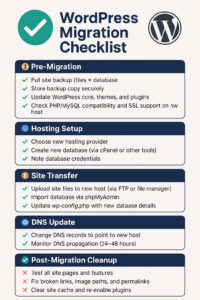
⚡ Post-Migration Security & Performance Checklist
- Complete WordPress Security Hardening Guide – Audit server permissions, firewalls, and SSL certificates.
- Top 20 WordPress Plugins for Speed & Security – Restore backup tools, caching, and database optimization.
- Emergency Guide: How to Restore a Compromised WordPress Site – Clean infected files and recover database integrity.
